From Raw Screen Recording to Polished Cut Without Opening a Timeline
Transcript editing and AI production replace timeline work for non-editors.
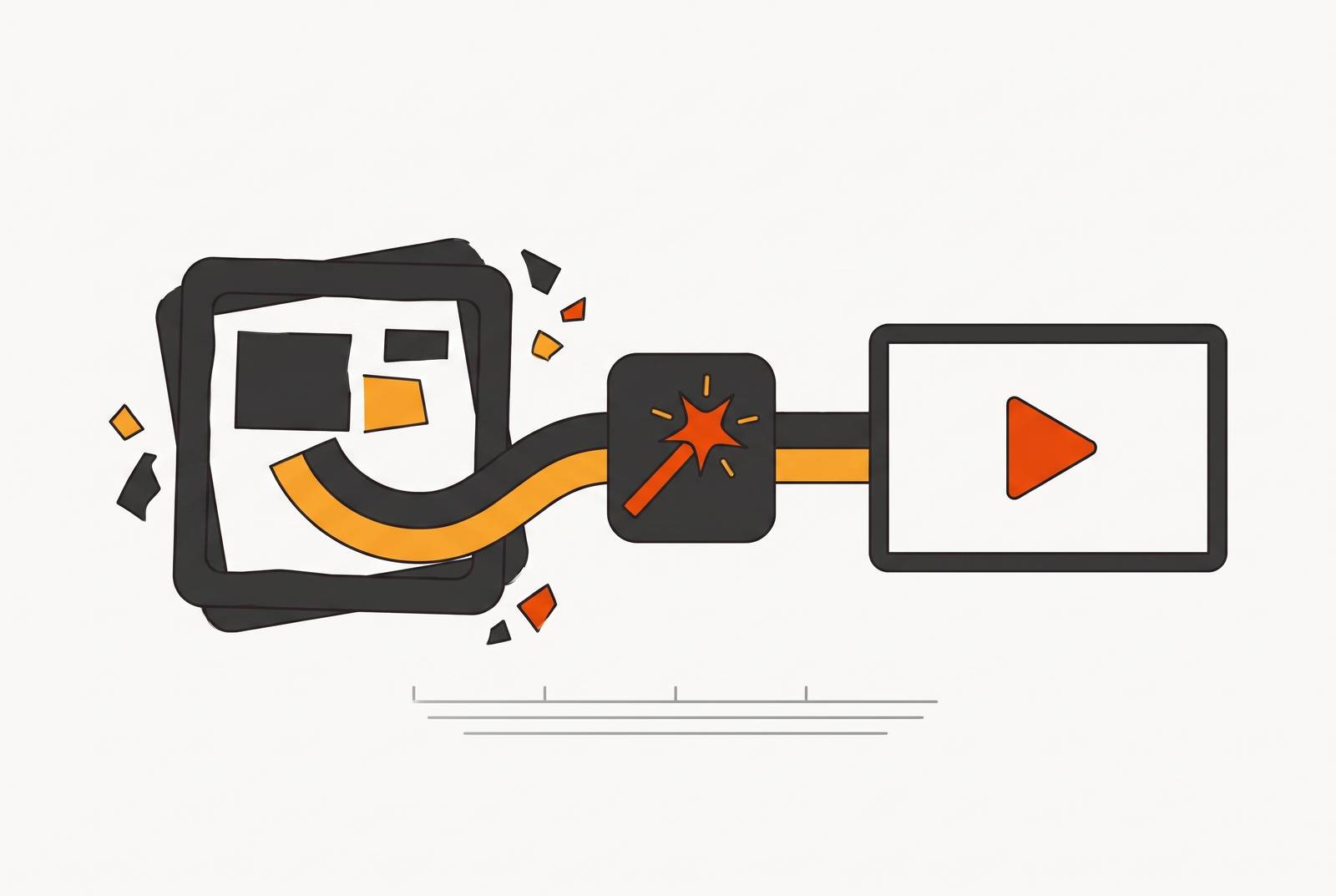
A raw screen recording can become a finished video that is ready to share without anyone opening a timeline. Transcript-based editing replaces manual cuts and clip arrangement, while AI handles silence trimming, zoom, focus, and captions. With agentic video editing for screen recordings, software decides how to produce the video, and the creator decides how to explain it.
Product managers and educators can skip the video editor by using transcript-based editing and AI production. The recording appears as text, so deleting a sentence removes that segment and cutting and pasting a block reorders the video. AI trims silences, flags filler words for approval, zooms and pans to follow clicks and typing, and generates captions that can be corrected in the same transcript. The creator edits the explanation, and the software handles frame-level cuts, keyframes, and subtitle timing.
Why the timeline became the bottleneck in screen recording workflows
The recording is finished, and then the real job appears. A 20-minute explanation needs two hours of work before it is easy for anyone else to watch. There are pauses to cut, tiny buttons to make visible, and captions to sync. What felt like a quick way to explain something has acquired a second shift. The timeline is where that shift begins.
For PMs, founders, CS managers, and educators, this is not simply an unfamiliar interface. It asks them to make decisions outside their expertise, including which frame to cut on and where a zoom should start and end. Knowing the product does not mean knowing how to edit footage of it. The traditional workflow separates recording from production, with importing, scrubbing, effects, and exporting each offering another place to give up.
Workplace video has made that friction hard to avoid. Product walkthroughs, customer onboarding, internal updates, and support replies need clear explanations. Yet teams have often had to choose between learning editing software and sharing raw footage that viewers struggle to finish. Some skip recording altogether. What replaced the timeline, and how does that replacement handle the old post-production jobs?
How can product managers or educators edit screen recordings without learning a video editor?
Timeline-free editing replaces manual frame-level work with two mechanisms. The first is transcript-based editing, where the recording appears as text and deleting a sentence removes the corresponding video segment. The second is AI-automated production, where software makes decisions about zoom, focus, and motion during or immediately after recording. Editing still happens, but its controls have changed.
Bandicam's 2026 roundup describes working “directly from the transcript” rather than manually cutting clips on a traditional timeline. The interface behaves more like a word processor. A creator can remove an unwanted explanation by selecting its words instead of hunting for its beginning and end in footage. The text becomes the handle for the video.
Automation takes a different share of the work. AutoZoom's 2026 analysis describes a system that responds to clicks, typing, and navigation by focusing on the button, text field, or destination involved. It uses those actions to decide where to put each effect, so the creator does not have to. Many tools now use both approaches, with AI doing the production work and text editing letting the creator make changes afterward. Each post-production step can therefore be understood by the mechanism that replaces it, starting with cleanup.
How silence trimming and filler-word removal work without touching a timeline
Silence trimming starts with a pause threshold. The tool identifies pauses longer than that configurable threshold and removes or compresses them. Silence trimming alone can turn a 30-minute recording into 22 minutes without losing spoken content. The creator does not have to scrub through every quiet stretch to find its boundaries.
Filler removal works from the words in the transcript. AI flags words such as “um,” “uh,” “you know,” and “basically,” and the creator reviews the highlighted text and approves removals. Approval deletes the words from both the transcript and the recording, with the audio closing naturally. This replaces the tedious cycle of finding a filler, setting cut points, deleting it, and checking the join. On a timeline, that cleanup could take an hour for a 20-minute recording.
Removing every hesitation can flatten the rhythm until the speaker sounds less like a colleague and more like a telephone menu. Most tools make removal configurable and reviewable, so deliberate pauses can stay. The practical approach is selective cleanup, cutting obvious dead air and distracting fillers while leaving the speaker room to breathe.
How AI zoom and focus replace manual keyframing for screen content
Buttons and text fields occupy a tiny part of a 1080p or 1440p frame, especially when the viewer watches on a laptop or phone. The explanation may be perfectly good while the action is effectively invisible. A product walkthrough should not double as an eye exam.
Traditionally, an editor solves this with close-ups and pans, placing zoom keyframes and adjusting their timing. AI instead tracks mouse movements, clicks, and keyboard input, then adds smooth zoom and pan effects on its own. AutoZoom's analysis describes following workflows across multiple windows, nested menus, and context switches without jarring movement. The same analysis identifies motion blur as an effect that makes recordings “feel dramatically more professional.”
Other automated effects include easing curves, which give movement a slow start, faster middle, and gentle stop, as well as background replacement. These remove technical production work, but they do not make every attention decision correct. Input-led zoom has clear cues when the creator clicks or types, but context switches that are fast and hard to follow still pose problems. Automation is most useful when it follows a readable sequence of actions. Once viewers can see the action, captions help them follow the explanation even when they cannot hear it.
How automatic captioning replaces manual subtitle work
Someone must transcribe the audio, create an SRT file with precise timestamps, import it, adjust the timing, and style the text. For a dense 5-minute video, that work can take longer than the recording itself. It is easy to see why non-editors skip it. It is also easy to see who loses out.
Viewers watching without sound need the words on screen, while accessible communication depends on more than audible narration. For async work, a text version also makes an explanation available to scan and search.
AI captioning changes the task from creation to correction. The tool transcribes the audio, generates synchronized captions, and applies them, leaving the creator to review errors. Bandicam's roundup describes editable transcripts that can be exported as TXT, SRT, or subtitled video. Because transcript-based cleanup already requires the words, captions can come from the same text. That shared interface also supports a larger edit than deleting a filler word, namely changing the order of the explanation.
How transcript-based editing handles clip arrangement and structure
The useful example arrives halfway through the recording, but it belongs at the beginning. On a timeline, fixing that means locating boundaries, cutting the segment, moving it, and checking the audio joins. In a transcript editor, the segment is a block of text. Select it, cut it, and paste it earlier. The video reorders with it, and the audio follows automatically.
A tangent can disappear through a text deletion, a feature explanation can move into the right order, and an introduction can become an outro. The creator is deciding what the audience should learn next. That distinction makes the recording a draft instead of a performance that must get everything right.
Screen and camera should be captured as separate, adjustable elements rather than burned into one composite, so the layout can change with the explanation. Screen-only, picture-in-picture, split view, and camera emphasis can then be chosen during the edit. One recording can support a short social clip, a full walkthrough, and a support doc segment without another take. With cleanup, framing, captions, and structure covered, the remaining question is when the edit is actually finished.
When timeline-free editing is enough and when precision editing still earns its cost
Timeline-free editing is enough when the job is a watchable product demo, async update, onboarding walkthrough, or support reply. It handles silence removal, filler cleanup, focus, captions, restructuring, and layout changes without frame-level work. That is the full production stack these recordings usually need. Speed comes from avoiding precision that the job does not require.
The reverse is true for work built around that precision. A conventional editor is still worth using for frame-accurate multi-track editing, complex motion graphics, color grading across a long story, and marketing videos that need a high level of polish and layered effects. A transcript is a better control surface for edits whose meaning lives in the explanation.
Slight imperfections can feel genuine, while a heavily staged demo risks creating expectations the actual product cannot meet. The practical rule is to cut obvious dead air, remove distracting fillers, make the interface readable, and stop. Length belongs to the same discipline, with SaaS feature announcements around 60–90 seconds, sales demos a few minutes, and support walkthroughs relatively short. The transcript makes it easy to see what to cut, but this workflow still needs a tool that joins the steps together.
What to look for in a tool that supports the full timeline-free workflow
Recording and editing should live in the same tool. A product that improves transcription but requires an export into another editor restores the handoff this workflow was meant to remove. Full support means screen and camera capture, transcription, cleanup, captions, text-based rearrangement, layout adjustment, and sharing without an export between them.
Transcript accuracy is the next practical test. When the transcript has errors, the creator has more to fix during filler removal, clip arrangement, and captions, so one feature's errors create work across several tasks. Caption text must also be editable, with transcript corrections flowing through to the subtitles. Separate screen and camera capture preserves layout options, while instant sharing avoids a rendering queue at the finish. Together, these criteria are more useful than a broad claim about editing videos with AI.
The named options here serve different needs. Vmaker AI supports long-to-short clip conversion, AI subtitles in 120+ languages, and animated auto-subtitles in 35+ languages. It also offers video-to-video transformation, which can turn screen recordings into avatar-guided product demos, for many kinds of users, including marketers and L&D teams. Bandicam for Mac is better suited to recording, annotation, and AI subtitles, with editable transcripts and SRT export, than to pure transcript-based editing as its primary interface.
Neither description alone establishes the complete end-to-end workflow. For a buyer seeking the best AI editor for autonomous cuts and pacing, the decisive distinction is which decisions the tool actually takes over and which remain reviewable. Subtitle generation is not clip arrangement, and recording is not automatic production. The right fit depends on the concrete capabilities behind the product’s “AI.
Putting the workflow together: from first recording to shareable video
To put the workflow into practice, begin with the recording setup. Use a demo account with data that looks real but is made up, and keep real customer data, internal metrics, and personal information out of view. Decide the length and structure before recording, and put the value proposition in the first 10 seconds. Confirm that screen and camera are separate tracks.
During recording, let automation handle zoom, focus, and motion while you focus on the explanation. Afterward, review the transcript, approve selective silence and filler removals, move any misplaced segments, and correct caption errors. Adjust the layout where needed, such as screen-only for technical sections and picture-in-picture for the introduction and ending. A background can be applied if desired. In a tool that supports instant sharing, the finished edit can then go straight to viewers without an export or rendering queue.
The recording is a draft. A spoken mistake can become a text deletion, and an explanation in the wrong order can become a cut-and-paste. That leaves the creator with an editorial job they can understand without learning a timeline. The work is done when viewers can follow the explanation and trust what they see.