AI Filler Word Removal in Screen Recording Editors
Transcript-based cuts catch the ums that silence detection misses.
AI filler word removal in screen recording editors works by transcribing speech, finding unwanted words, and cutting their timed spans (not by detecting silence). AI can make routine cuts without someone working through the timeline, but a person still needs to check the pacing, what the words mean, and how the argument fits together.
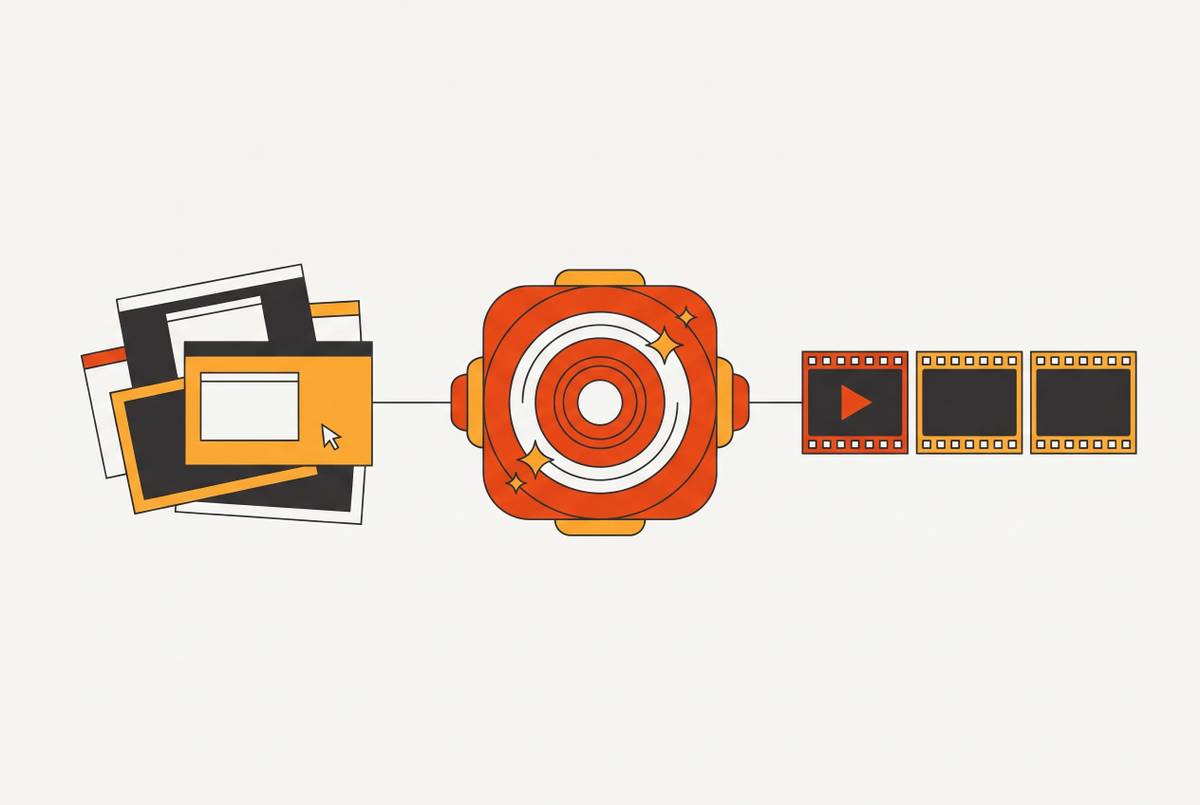
Upload the recording to an editor that transcribes speech, and let it find the fillers in the text instead of listening for them on the timeline. The tool marks each um, uh, er, and repeated stutter against word-level timestamps, proposes the cuts, and lets you confirm, restore, or skip each one before it removes the span and closes the gap. In Kapwing's browser editor you can type a prompt such as "remove all silences" or name the filler phrases you repeat, then review the result before exporting. Silence detection can strip dead air alongside this, but only the transcript catches the spoken filler.
Why filler word removal requires transcription, not silence detection
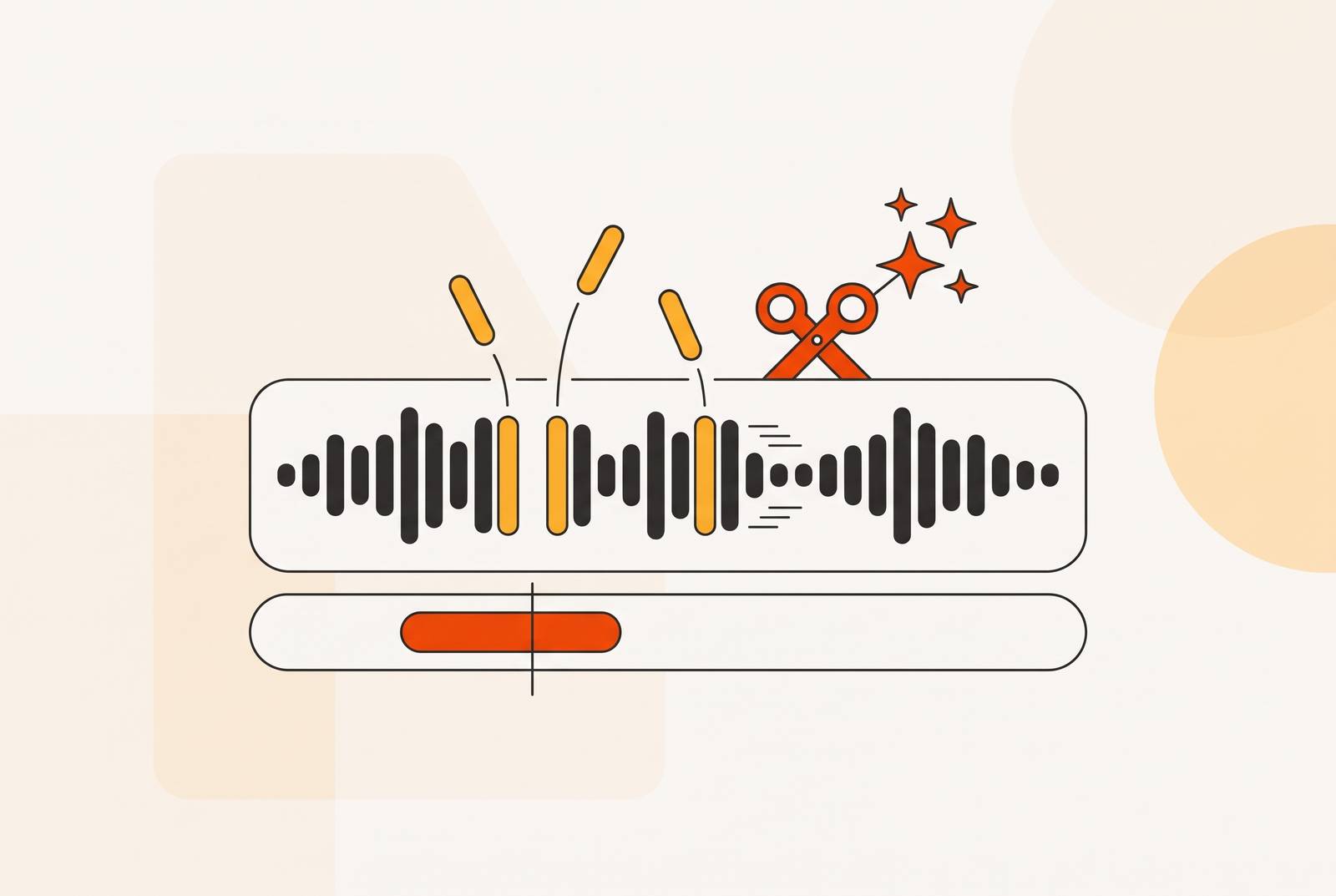
A silence remover checks how loud the audio is without recognizing the words. When the waveform goes flat, it finds a possible gap to cut. An “um,” however, can be as loud as the sentence around it, so there is no flat region for the detector to catch. Sound is not evidence of useful speech. A silence detector can spot an empty room, but it cannot identify the guest who has overstayed.
The editor transcribes the audio, matches filler patterns in the text, and maps those matches back to word-level timestamps. Those timestamps identify the spans to remove from the timeline. This dependence on transcription explains why filler removal became widely available only once speech-to-text models became fast and accurate enough to run at practical speed.
How do you remove filler words from a screen recording without scrubbing the timeline?
The workflow runs from upload through transcription, marking, proposed cuts, confirmation, and export. After upload, the speech-to-text model produces words with timestamps, timing each word to within a few tens of milliseconds. That precision makes a clean mid-sentence cut possible when padding is handled correctly. The editor needs both the text and the timestamps to match an unwanted word to the right piece of audio reliably.
Next, the tool checks the transcript for words on a filler list. A standard list covers um, uh, er, ah, hmm, and repeated stutters, while a broader list adds expressions such as like, you know, sort of, kind of, basically, and actually when they add no meaning. The editor marks candidate removals for review rather than treating every match as a settled decision. The user can confirm, restore, or skip a cut. Once the user confirms a cut, the tool removes the span and closes the gap, with padding that the user can adjust so the words on either side do not slam together.
What the tool gets right after that depends on how accurate the transcript is. If it misses a filler or misidentifies a word, the matching stage is working from the wrong evidence. Precise timestamps cannot rescue the wrong text. A clean-looking transcript interface is useful, but its value depends on how faithfully it represents the recording.
Where silence detection still belongs in the same workflow
Silence detection remains useful because dead air is a different problem from spoken filler. It finds audio below a volume threshold for longer than a set duration, making it fast and effective for gaps without speech. Transcript detection handles the words inside the sound. The two mechanisms work together to cover pauses and verbal clutter that either one alone would leave behind.
The threshold, measured in decibels relative to full scale, sets what counts as quiet, and minimum duration sets how long it must stay that quiet, both shaping the pacing. Cutting pauses longer than half a second removes gaps between sentences and creates the fast, jump-cut rhythm common in short-form talking-head content. Cutting only silences longer than one and a half seconds removes dead air and thinking pauses while preserving more natural rhythm for long-form educational video.
Neither setting tells the detector why someone stopped speaking. A pause for dramatic effect and a lost train of thought may both look quiet, and the start of a word can get clipped if it is spoken softly. The useful division of work is to let silence detection strip obvious dead air, then use transcript editing to catch spoken filler. Speed alone is a poor judge of delivery.
The contextual problem: when "like" is doing real work
Word identity is not the same as word function. Matching “um” or “uh” is relatively straightforward, but “like,” “basically,” and “actually” can contribute meaning. Removing them by name alone can damage grammar or change what a sentence says. The dictionary is not the editor here. Detection has to tell when someone says a word out of habit and when they choose it for a reason.
A safe filler list contains standard hesitation sounds that are safer to cut, while an extended list includes ordinary words and phrases that need to be checked against what is said around them. More advanced tools attempt contextual natural language processing to make that distinction. Simpler tools use pattern matching and leave the decision to the reviewer. This remains a design problem across the field.
When judging a tool, check whether it can tell what a word does in a sentence or just match its spelling. An extended list needs closer post-removal review, especially with fast talkers and speakers whose speech relies on idiomatic expressions. A longer detection list may simply hand more decisions back to the person reviewing the cuts.
Bad-take removal: the same transcript logic applied to repeated phrases
Bad-take removal looks for repeated or near-repeated phrases close together in the transcript. A false start, a pause, and another attempt create a recognizable pattern that word-level filler matching alone does not address. The system keeps the last complete attempt and cuts the earlier ones, relying on the tendency for speakers to say the good version last. Deliberate repetition for emphasis still needs human confirmation before removal.
This changes recording as well as editing. Instead of stopping the camera after a fumbled sentence, a speaker can stop, breathe, and say it again. The practical rule is to leave a clear one-second pause before restarting, giving silence and repeat detectors a clean boundary. Recording can then become more about capturing the explanation and less about delivering a flawless performance to a very patient lens.
Where automation stops and editorial judgment begins
Automated cleanup handles um, uh, dead air, repeated false starts, and obvious verbal tics. These are frequent, mechanical problems that consume editing time without usually requiring a decision about the argument. Structural editing is a different job entirely. Filler removal does not decide whether a point was explained twice in different words, whether the second half is weaker, or whether the best hook is buried four minutes in.
The transcript can make those larger edits faster because it lets a person read the recording as a document. Cutting a paragraph or an argument, however, still calls for editorial judgment. A person also needs to listen when the audio is hard to follow, especially when people speak over each other, have heavy accents the model does not know well, or say fillers that run straight into the next word. Those are precisely the places where text alone may hide a rough cut.
Removal serves as a first pass, followed by review of the transcript for structure and the audio for natural delivery. Aiming for zero fillers can produce clipped, robotic speech, even when the removal count looks impressive. The scoreboard is not the audience, after all. Automation takes care of work that repeats, so the reviewer can focus on what the speech says and how it flows without having to hunt down every hesitation.
How Kapwing implements transcript-based filler removal in a browser
Kapwing’s filler word removal tool presents this workflow through a browser-based AI Assistant. Users upload an audio or video file and type a prompt describing what to remove, including a broad command such as “remove all silences” or particular filler phrases they repeat. The assistant delivers the cut result, which users can review and refine through the assistant or timeline editor before exporting. The prompt takes the place of setting parameters by hand. It does not remove the review stage.
Kapwing’s tool page names uses including podcast episodes, social clips, tutorials, online courses and lessons, interviews, YouTube videos, and demo recordings for sales and customer success. The same studio includes background noise removal, subtitle generation, and manual splitting and trimming. The workflow stays in a single browser tab.
For content teams, the shared workspace adds real-time review, feedback, and refinement. Videos are cloud-based and accessible from any device and browser without downloading or installing the editor. This gives a concrete answer to what prompt-led video editing can look like in practice. A user describes the cleanup, the tool makes the cuts, and the team reviews the result in the same environment.
What the same transcript logic enables for screen recording workflows specifically
Screen recordings combine narration with activity, so a hesitation can come from navigating the interface as readily as from searching for a word. Fumbled demo narration, false starts, and pauses mid-explanation are routine features of the format. A perfect take is a demanding entry requirement. Transcript-based editing lowers that burden by turning spoken cleanup into a text task.
That approach is especially useful for non-editors producing product demos, tutorials, and async video messages. Deleting highlighted words is more approachable than locating each unwanted sound by scrubbing through audio. For SaaS teams making onboarding, documentation, and customer success videos, the workflow offers a repeatable way to tidy narration across frequent recordings. Everyday explanations also accumulate the same hesitations and restarts.
Long instructional recordings need a gentler rhythm than tightly cut social clips, because pauses help keep learners oriented. The longer silence-duration setting discussed earlier leaves more of those pauses in place than a setting that cuts every sentence break. Workflow design is another practical distinction. Tools that combine recording, transcript editing, and sharing remove app handoffs where work can stall, making cleanup part of producing the recording.
What should buyers look for in an AI video editor that makes cuts automatically?
First, check whether the tool transcribes speech or only detects silence. A waveform-only detector can remove gaps, but it cannot identify spoken fillers. A transcript view provides the words against which the removal claim can be judged. Next, check whether proposed cuts appear before execution, with a way to confirm, restore, or skip them.
Context and padding then separate useful automation from indiscriminate trimming. Does the tool distinguish standard hesitation sounds from meaningful words on an extended list, and does it attempt contextual detection or rely on review? Does it let users adjust the padding so cuts leave enough breathing room? These controls address different kinds of damage. One protects meaning, while the other protects the sound of the join.
Scope is another useful comparison between editors. A tool that handles bad takes as well as individual filler words can remove a larger share of repetitive cleanup than one limited to word-level matches. Silence detection also finds dead air to cut. None of these capabilities, however, establishes that the tool can choose the strongest argument or reshape a weak explanation. Buyers looking at agentic video editing need to separate a tool’s ability to carry out cleanup decisions from its ability to make broader choices about what a video says.
Finally, processing location belongs in the evaluation before a team commits sensitive demos or unreleased features to a workflow. Some tools process locally, while others upload video to the cloud. The best fit depends on that requirement as well as the editing controls. A useful evaluation asks for transcript accuracy, visible proposed cuts, contextual handling, adjustable padding, bad-take coverage, and an acceptable processing location (not simply an AI badge on the export button).