Switching Away From Watermarked Screen Recorders on Windows
Free tools like OBS and Snipping Tool let you record without branding your work.
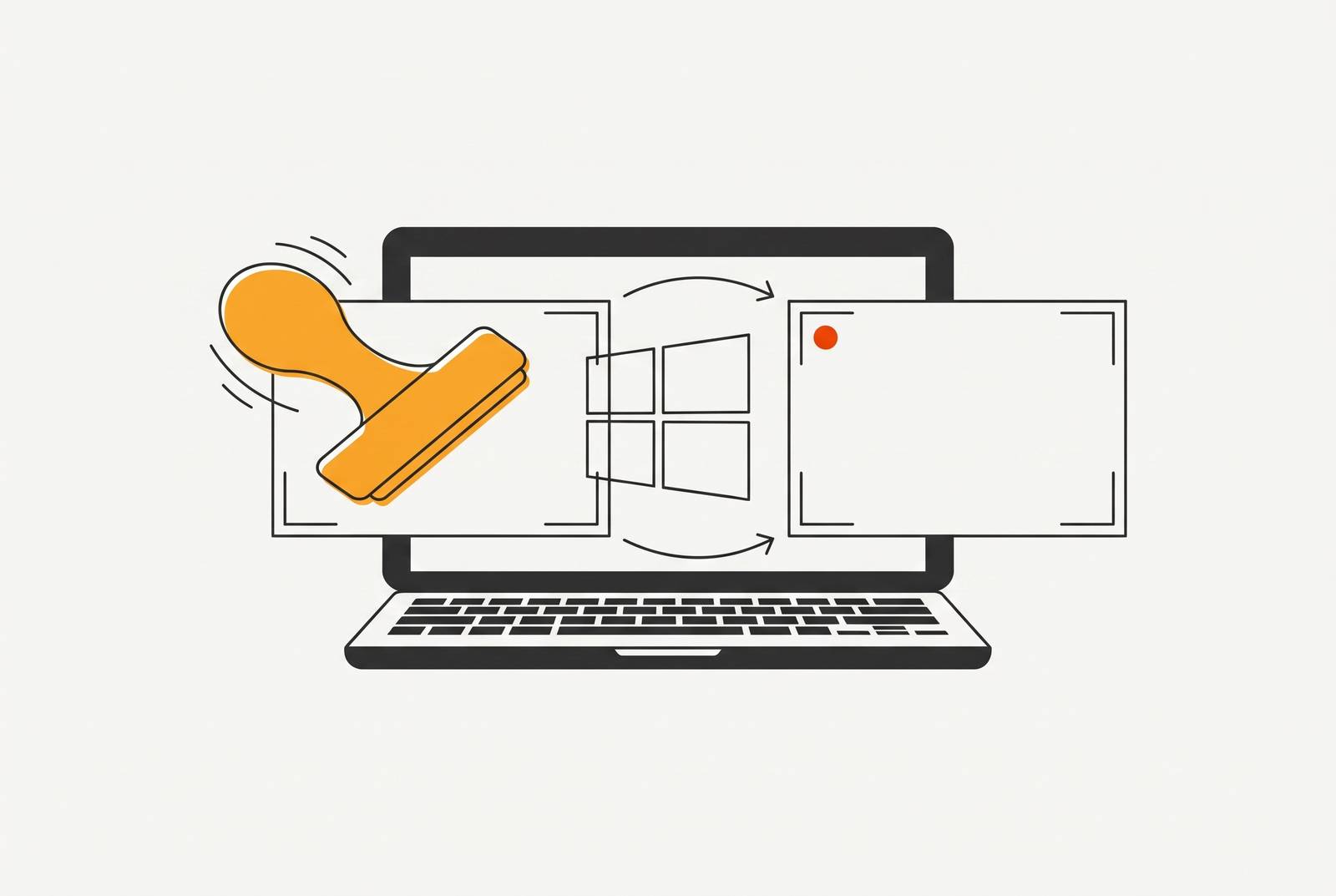
For watermark-free screen recording on Windows, Xbox Game Bar and Snipping Tool work well for quick captures, while OBS Studio gives more control over longer recordings. The best screen recorder depends on what happens after capture, including editing, captions, and sharing. Switching away from watermarked output is a workflow decision, because a professional video should promote your work.
Why a watermark on a screen recording is a professional liability, not just an annoyance
A product demo sent to a prospect has a specific job, which is to make the product and its presenter look credible. A recorder’s logo competes with that job. It signals that the sender is using someone else’s unpaid tool, putting a second brand into a conversation that was supposed to belong to the first. The same problem appears in customer success walkthroughs and onboarding videos embedded in a help center. The viewer came for guidance.
The damage is uneven because the sender and viewer see different things. After daily use, the sender may stop noticing the watermark, while a viewer notices it once and lets it color what follows. Removing it later creates another problem. Re-recording the video or sending it through a separate editor to crop or blur the mark can cost more time than the free plan saves. The professional liability is therefore both the impression left with the audience and the cleanup work needed to correct it.
Why free tools add watermarks — and what that tells you about which ones don't
A vendor watermark is a conversion mechanism. Open-source tools such as OBS Studio and ShareX demonstrate that recording can be unlimited, watermark-free, and free forever. The useful distinction separates tools that end their work with a local file from those that build a business around distributing that file.
Cloud-hosted tools provide services such as shareable links, viewer analytics, and async comment threads. Their business model is tied to hosting the video, so a watermark can push a free user toward a paid hosting plan. The recording itself is only the beginning. In that model, upgrading may buy easier distribution rather than better capture quality, because the paid service handles what happens between finishing the video and getting someone to watch it.
Local-file recorders have no hosting revenue to protect, which removes that particular reason to stamp their output. A reader looking at another tool can first ask whether it hosts the file and, if it does, check the free tier for rules on watermarks. That provides a tentative clue. A free plan’s restrictions reveal what the vendor wants the user to buy.
What's the best way to record your screen on Windows without watermarks?
Xbox Game Bar is the starting point for a quick recording of one application. It is pre-installed on Windows 10 and Windows 11, with no download, account, or setup required. Win+G opens its overlay, while a separate keyboard shortcut starts recording immediately. The MP4 is saved in the Captures folder under Videos, with no watermark. For a single-app explanation, that is a short path from question to answer.
Game Bar records only the active window, so it cannot record the full desktop or File Explorer, or keep up when the user switches windows while recording. Clips can run to several hours each. The Standard/High settings give quality up to 1080p, and Settings → Gaming → Captures has choices of 30fps and 60fps. That makes it a practical baseline when the whole demonstration fits inside one app.
Windows Snipping Tool can record the desktop work that Game Bar cannot. Win+Shift+R opens the recording overlay, where the user selects a screen region and clicks Start. The clip has no watermark and works well for short videos that show the desktop or file-system. Its capture controls are easier to use than those in OBS. A finished clip can be saved as-is or opened directly in Clipchamp, so a basic capture does not have to remain a rough draft.
Clipchamp is built into Windows 11 and combines screen recording with an in-app video editor. It supports trimming, text overlays, transitions, and background music, although some music tracks require a paid plan. No additional install is needed on Windows 11. It is the natural next step when a Snipping Tool capture needs an introduction trimmed or an explanation added on screen. Together, these Windows-native options establish a useful baseline before another recorder earns a place on the machine.
The free third-party options — OBS Studio and ShareX, and what each actually costs you in time
OBS Studio gives more control over capture and has no paid tier. It is open source, runs on Windows, Mac, and Linux, and has no watermark, time limit, or feature gating. It records a full screen, a specific window, or a custom region, with support for microphone and system audio together, scene switching, and overlays. Output choices include MP4, MOV, MKV, FLV, and TS/HLS, plus Hybrid/Fragmented MP4/MOV variants. The range is broad, but the controls need attention.
That attention is the real entry cost. People using it for the first time have to choose an encoder, route audio, and set up scenes rather than get a single record button and a reassuring pat on the head. OBS has an Auto-Configuration Wizard under Tools → Auto-Configuration Wizard that cuts much of that setup work. Even so, a wrong encoder or mismatched audio sample rate can break a recording without an obvious error message. OBS fits people who record often, need to record with no time limit, and can spend time setting it up once.
ShareX takes a different approach to repeat work. It is Windows-only and open source, with no watermark, time limit, or account requirement. Its capture tools include MP4 screen recording, GIF recording, screenshots, scrolling capture, and OCR, which makes it useful beyond video alone. Once configured, hotkeys make repeated captures quick. Developers, sysadmins, and documentation writers also gain scriptable capture and automated upload, so recording can become part of an established technical workflow.
ShareX assumes the user understands what they are configuring, and it does not offer a webcam overlay during recording. Neither it nor OBS has a built-in editor, and both leave some work between capture and sharing. Automated upload can help with delivery, but it does not turn a raw clip into a finished explanation.
The distinction also prevents two shortcuts in buying advice. OBS can record video and live streaming, but that alone does not show which recorder most video creators or streamers use. Likewise, a free price does not establish low computer overhead. A claim that an open-source recorder will not slow down a computer needs performance evidence.
Where free tools run out — the editing and sharing gap
A raw file may still need dead air trimmed, captions added, a format converted, and a shareable link created. With OBS and ShareX, the video has to go to another application for editing before it is ready for the person who will watch it. Recording was the easy part of that sequence. For SaaS teams and async communicators, the useful unit of work is record → trim → caption → share link.
Sending the raw MP4 avoids setting up hosted delivery, but it makes the recipient download a file. It also leaves out view analytics, an in-video CTA, and the ability to update the video after it has been sent. Staleness creates a separate loss of trust. A walkthrough showing an old interface can leave users doubting both the documentation and the product when the instructions no longer match. Hosting makes updates possible without re-sending links, although teams still have to keep embedded videos current wherever they live.
Windows-native editing is an important exception to any claim that free tools only record. The Snipping Tool-to-Clipchamp path already provides a route from capture to an edited clip. However, editing and delivery remain different requirements. An integrated workflow earns its price when it reduces those hand-offs. The relevant features are trimming, captions and transcripts, approachable editing, and link sharing, with a way to keep the published video useful as the product changes.
Bandicam answers the local-recording side of that problem. The release named here is Bandicam 2027 Beta on Windows, with Bandicam for Mac also available. Its free tier allows 5-minute clips, an unlimited number of recordings, no watermark, and no signup. Files stay local and do not have to be uploaded to the cloud. Capture modes include full screen, custom area, a specific window, and webcam, while the Windows version adds a dedicated Game Recording mode for DirectX/OpenGL capture.
Bandicam also includes local AI transcription in the free version, but exporting transcriptions and edits requires the full version. That version also unlocks unlimited recording length. This is a useful distinction for short tutorials, bug reports, and social clips, where clean output without an account or cloud dependency may be the main requirement. It does not close the integrated-sharing gap.
Camtasia addresses a different need, which is building a screen capture into a developed lesson. Available on Windows and Mac, its timeline supports callouts, zoom-and-pan effects, animated cursor highlights, and quizzes. Those tools work well for educators and documentation teams who make polished lessons with chapters. The emphasis is on teaching, not merely sending. Its one-time purchase model does not include an instant shared-link hosting workflow or an AI-assisted editing pipeline.
These differences explain why integration is not a single feature. Bandicam extends local capture with transcription and paid export, while Camtasia puts more instructional work inside the editing process. A team that needs immediate link delivery still has another requirement to meet. For that team, built-in trimming, caption generation, transcript-based editing, and sharing are the relevant buying criteria. A recorder can be excellent at making the file and still leave the sender doing the rest of the job.
How to choose based on how seriously your video needs to land
The decision starts with the video’s destination and the work required before it gets there. For an internal explanation to one person, Xbox Game Bar or Snipping Tool is sufficient when their capture limits fit the task. There is no install and no watermark. When a video goes to someone outside the organization but is already edited elsewhere, OBS can record with no time limit, while Bandicam can make short, clean captures without signup. ShareX fits technical workflows that benefit from GIFs, automation, and frequent hotkey-driven capture.
A video made to teach needs more work on the explanation itself, which changes the choice of tool. For chapter structure, quizzes, or zoom-and-pan effects, Camtasia’s one-time purchase of $299 is the established fit described here. Client-facing demos and async messages may instead demand a shorter path through trimming, captions, and link delivery. More capture settings do not help much when the delay comes from exporting, uploading, and preparing the video for its audience.
The watermark was a symptom of the mismatch. It showed that the tool’s business model and the user’s workflow were pulling in different directions. Fixing that workflow removes the reason to tolerate the stamp in the first place.