What the Output of a Fully Automated Screen Recording Edit Actually Contains
Automated screen recording tools produce transcripts, captions, and overlays alongside video.
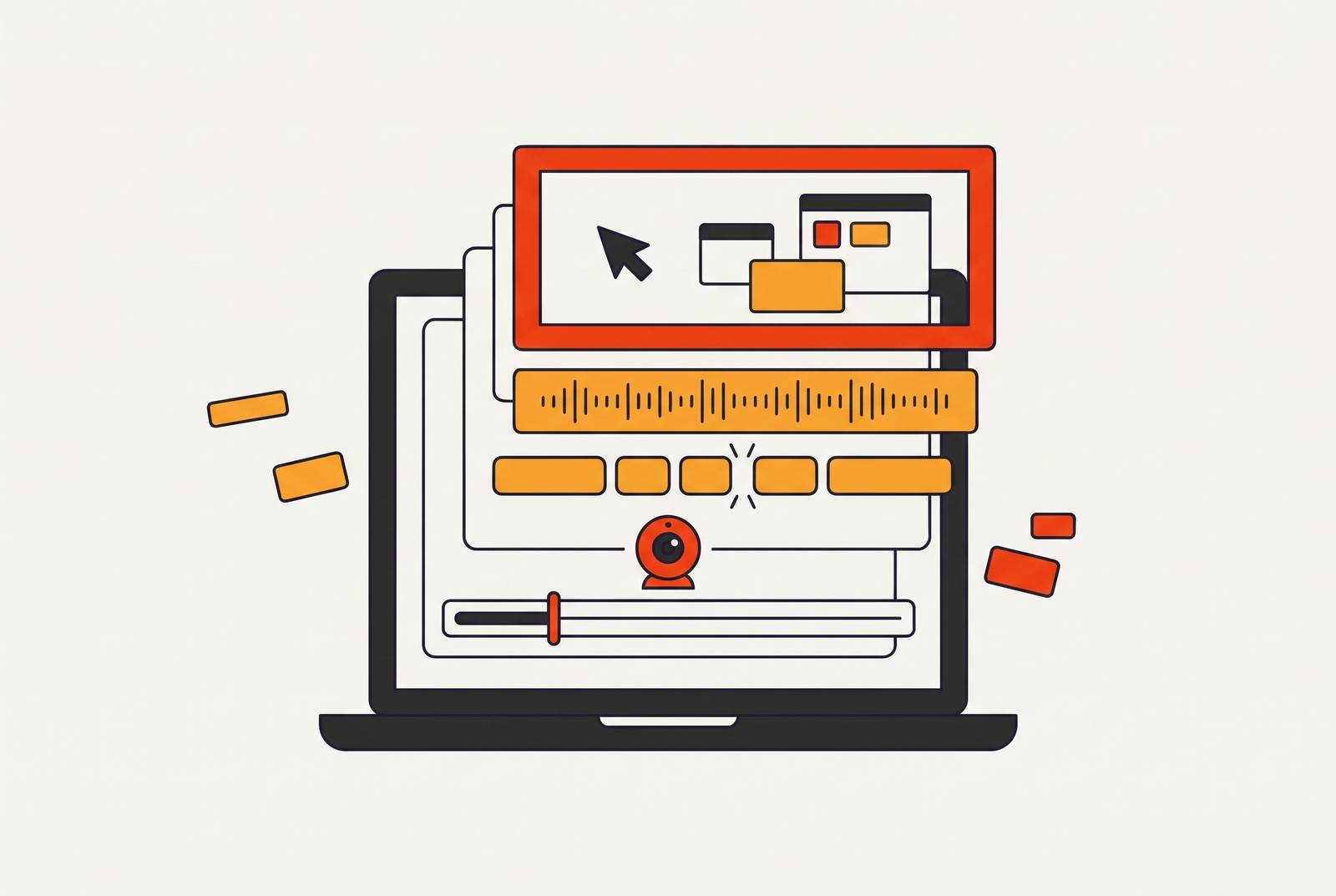
A fully automated screen recording edit produces more than a trimmed video. It can deliver camera motion, action overlays, cleaned audio, a transcript, captions, navigation, written documentation, and a shareable link without manual timeline work. For creators evaluating agentic video editing, the useful question is which of these outputs a tool produces reliably, and which decisions still need a human.
What automated editing actually does to a raw screen recording
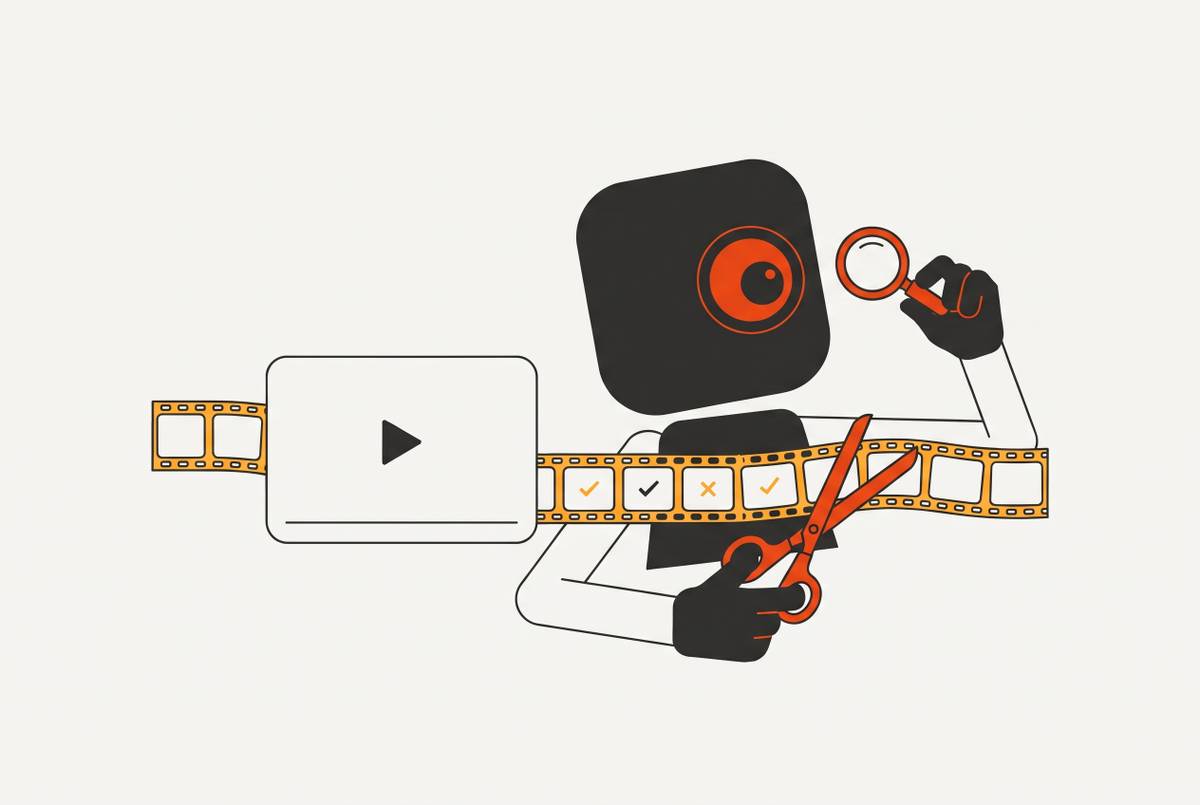
Recording a screen was rarely hard to do. The work began afterward, when someone opened a timeline to add zoom keyframes, trim pauses, type captions, and clean up the background. Turning the capture into something watchable could take as long as recording it, or longer. The record button was the starting gun.
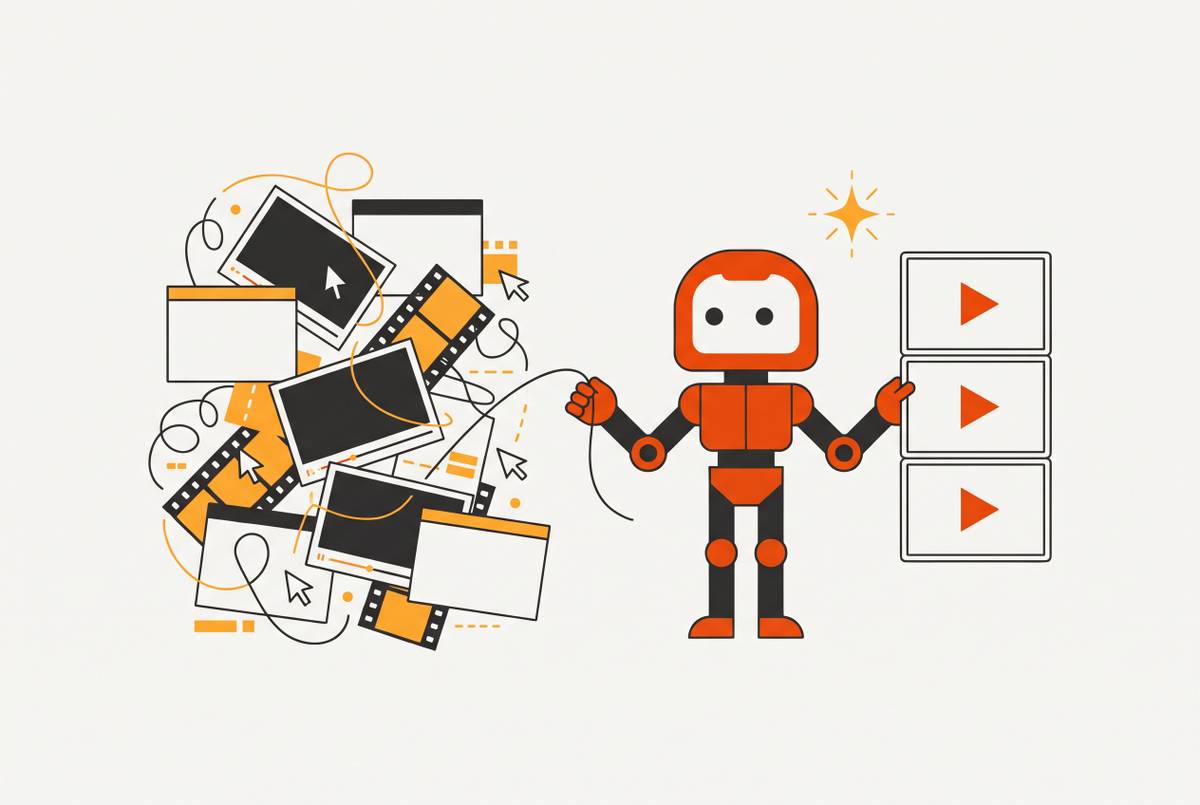
A fully automated edit collapses capture and production into one pass, making decisions during or immediately after recording. AutoZoom describes the defining change between 2024 and 2026 as intelligence applied in real time. That shifts the evaluation from capture quality to output. Understanding what comes out is now practically useful because the result is no longer just a video file.
Intelligent zoom and camera motion applied without keyframes
Dynamic zoom is the first visible sign of production. The system uses mouse movements, clicks, and keyboard input to decide where attention belongs, then moves the view there. A button click can trigger a closer view of the button, while typing can shift focus to a text field. The creator does not set those keyframes by hand.
The distinction is whether zoom follows position or interprets action. Cursor tracking follows where the pointer goes, while a more context-aware approach uses the click or typing activity to infer what the viewer needs to see. A wandering pointer is not always a useful director. For creators comparing tools, cursor-following behavior and click-context interpretation are separate criteria for “automatic zoom.
AutoZoom explains that buttons, fields, and menu items occupy only a small part of a typical 1080p or 1440p screen, making full-screen captures hard to read on a laptop or phone. Zoom solves that legibility problem, while motion design controls how the move feels. Easing curves give transitions a slow start, a faster middle, and gentle deceleration. Motion blur and subtle 3D perspective effects add depth, so a flat capture looks as though care went into making it.
Click and keystroke visualization baked into the output
Zoom shows where to look, but overlays show what happened. Animated click indicators, highlighted cursor trails, and keystroke displays show that an action happened just as it takes place. That is a different job from magnifying a button. A close-up can show the target clearly without telling the viewer whether it was clicked or activated with a keyboard shortcut.
The system can automatically show clicks one way and shortcuts another, and hide the cursor when nothing is happening. The pointer need not remain onstage when it has no lines. These indicators appear in the finished video without manual annotation, adding a distinct information layer.
Background replacement and layout adjustment without a green screen
Automatic background replacement removes the surrounding desktop environment, including wallpaper and other application windows, and substitutes a clean frame. No green screen or manual compositing is required. AutoZoom describes background replacement as a feature applied while the screen is processed in real time.
Some tools automatically make widescreen, square, and vertical crops from the same session, so creators have versions ready for each platform without having to edit again. These are separate usable assets. That distinction changes what “done” means, because the automated pass may already have produced several versions that would otherwise require separate preparation. The visual output is therefore both a presentation treatment and, where supported, a set of differently framed deliverables.
Audio cleanup — silence removal, filler word deletion, and noise suppression
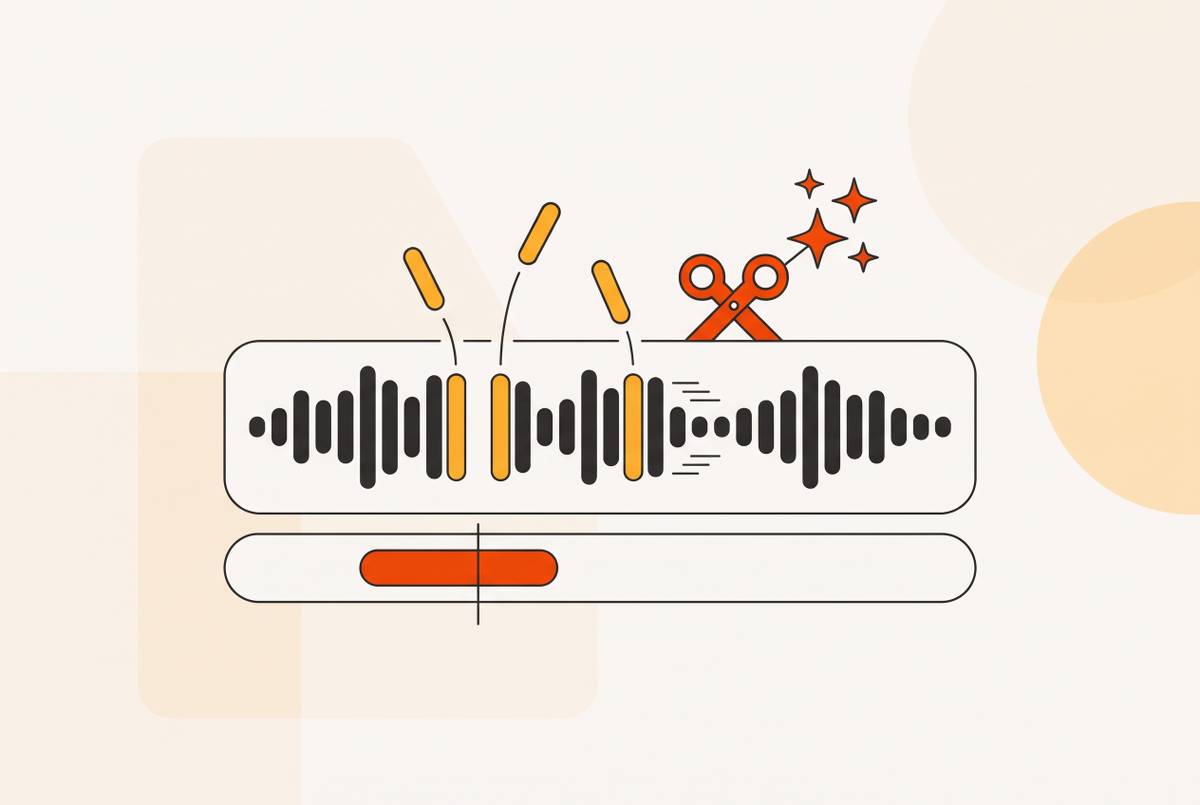
The sound receives its own production pass. An automated edit can produce a processed audio track with background noise suppressed, long silences trimmed, and filler sounds removed. Produced without manual waveform editing, this track is a distinct output element, even when the viewer encounters it only as the sound attached to the finished video.
FocuSee has three audio tools for this work. AI Smart Cut handles filler sounds and silence removal together, AI Noise Reduction deals with background noise, and AI Voice Enhancement works on breathing sounds and voice cleanup. Those tasks solve different problems. Removing a pause changes the timing, while reducing background hum makes the sound better without changing the pace.
Silence removal also shortens the final video, affecting viewer retention independently of how good the explanation is. Dead air is still air, but viewers rarely need all of it. This is one way automated editing makes a pacing decision rather than simply improving a signal. The same audio pass also feeds the transcription engine, which opens a separate branch of the output stack.
The transcript — a text document that is also an editing interface
A time-synchronized transcript is useful even without captions. It is a readable document tied to specific moments in the recording, allowing recipients to search for a term and jump to the relevant timestamp. They need not watch the whole video to find one instruction.
In transcript-based editing, the same text is also where the video gets edited. Deleting a sentence removes the video frames that go with it, so a familiar text edit takes the place of timeline scrubbing and frame-by-frame cutting.
The transcript also travels independently of the video. It can become written documentation, enter a knowledge base, or serve as the basis for an article without another transcription step. That gives the recording a second distribution channel. It does not, however, make the transcript interchangeable with captions, which place the words directly into the viewing experience.
Auto-generated captions embedded in the video
Open captions are time-coded overlays rendered into the video’s pixels. All viewers see them without having to turn anything on. Closed captions instead exist as a separate toggleable data track or sidecar file, while the transcript remains a document that can travel on its own.
Captions serve access and comprehension. They support viewers who are deaf or hard of hearing, as well as people watching without sound. They also help with technical terms, accented speakers, and noisy viewing environments. A well-framed recording is little help if its explanation cannot be followed.
The words are not automatically correct. The captions work well when one person speaks clear English, but accents, overlapping speech, and technical jargon make them less accurate. Those are just the times when viewers may need captions most. For published content, the responsible default is a brief human review, rather than treating neatly timed text as proof of an accurate transcription.
Chapters and summaries auto-generated from content structure
The transcript also supplies a structure for navigation. An automated workflow can derive chapter markers with descriptive titles, a content summary, and, in some tools, an AI-written title without manual input. These are metadata. Their job is to help people find, assess, and return to the recording.
Chapters change how a longer video gets used. A 10-minute product walkthrough becomes a reference that a customer or new hire can enter at the relevant section, instead of a linear explanation that starts at the beginning every time. The summary helps people who receive the video decide whether to watch it at all. Its indexable text also makes the content findable through search in a way an un-transcribed file is not.
This is where the output begins to resemble documentation. Chapters split the explanation into named parts, while a summary says what is in those parts. Neither is yet a full set of instructions. Some workflows extend that structure into a written guide, using the actions in the recording rather than stopping at a description of its contents.
Step-by-step written documentation derived from the same recording
A written guide is the least obvious recording output. Some automated workflows produce a step-by-step document with annotated screenshots, arrows, and contextual descriptions from the same capture session as the video. No additional recording is required. The system picks out each action, takes screenshots that show what matters at transitions, adds annotations, and writes descriptions.
The transcript preserves the spoken explanation, while the guide organizes the work into steps with visual references. One audience can watch the process unfold. Another can consult the instructions while performing it.
For SaaS teams, the same session can supply a customer-facing demo, a help center article, an internal runbook, and an onboarding guide. Video is useful for following motion and sequence. A written guide is useful when someone needs the next step.
A shareable link produced the moment recording stops
Distribution is the final layer of the automated output. In workflows with instant sharing, the finished recording becomes available as a URL within seconds of stopping, rather than waiting for a separate export, upload, and hosting process. There is no manual upload step or render queue. The output is ready to send.
That changes its role in a team’s workflow. A recording that must be prepared for publication belongs to a later task, while a link available immediately can function as a message sent now. This is the requirement for asynchronous video to replace a synchronous meeting. A polished explanation is not much of a meeting substitute if distributing it becomes a small project of its own.
What the automated stack does not resolve, and where human review still earns its time
Removing silence is a mechanical pacing decision, but deciding that a fluent explanation is unnecessary requires judgment about clarity and purpose. That editorial call still needs more than any current automated workflow can offer. A video can contain no dead air and still take too long to reach its point.
Camera choices also remain open to correction. Cursor-based zoom works well for many screen recordings, but multiple windows, rapid context switches, and nested menus can cause jarring or misdirected movement. Caption review checks a different risk, whether the written words match the explanation. These checks focus on a few parts of the video without calling for the whole edit to be rebuilt by hand.
Multi-layer motion graphics, precise color grading, and branded intros and outros with custom animation still need a dedicated video editor. For creators, the useful workflow is to let automation handle trimming, keyframing, and caption generation, then spend human effort checking words, confirming zoom choices, and deciding structure.
Sources
- Keyty — macOS Keyboard Visualizer & Mouse Click Overlay
- Keystro app
- Free Keystroke Visualizer — Show Keys On Screen (Mac & Windows)
- Cleanvoice AI
- Visual and text search interface for text-based video editing
- Music-aware speaker diarization for transcripts and text-based video editing
- Iterative generative AI-assisted video editing system and method