Screen Recording on Chromebook for Google Workspace Teams
Three ways to record on a Chromebook, and which fits each job.
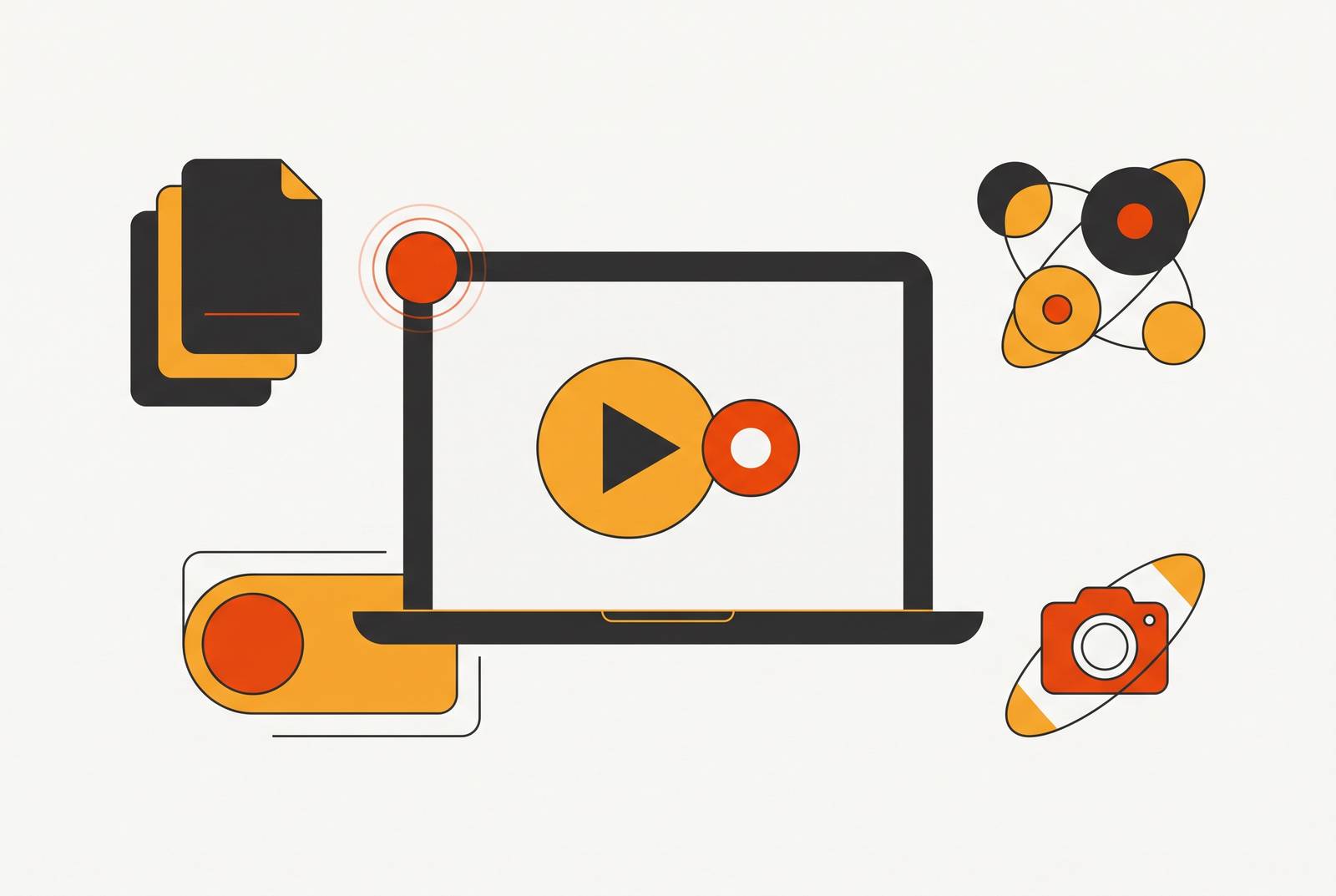
A Chromebook user who hadn't recorded their screen since last year would open their laptop today and find three different ways to do it. That's the actual shift: Google Workspace teams on Chromebooks now juggle the native ChromeOS Screen Capture tool, a new Google Vids Screen Recorder Chrome Extension that shipped in April 2026, and a shelf of browser-based options sitting in the Chrome Web Store. The ChromeOS tool itself hasn't changed much. It has sat there, quietly doing its job, since before anyone needed a flowchart to pick a recording method. What's new is the traffic jam around it: multiple paths now compete for the same five seconds of a user's attention when they hit record. A team of five can open the same laptop model and end up using three different tools without ever discussing it, which is fine until someone needs to standardize how async video gets made. Not which tool is "best," but which tool fits which job, is the problem worth sorting out before it causes a mess.
Native recording paths and their limits
Before anyone can match a tool to a task, it helps to know what each one actually does, mechanically, and where its usefulness runs out.
You open the built-in ChromeOS Screen Capture with Shift + Ctrl + Show Windows (on an external keyboard without a Show Windows key, it's Ctrl + Shift + F5). From there, a user picks full screen, a partial region, or a single window. Audio comes in three flavors, chosen in the Settings panel before hitting record: device audio, microphone, or both together. There's a front camera overlay that can be toggled on, and a "show clicks and keys" option that displays mouse clicks, key combos, and touch gestures on screen as they happen, handy for anyone building a tutorial. Recordings save as.webm files for full-screen and window captures, and they land in the Downloads folder by default, though you can change the save location. Partial-region recordings have one extra option,.gif, which carries no audio. To stop, you click Stop in the shelf, or hit Search + Shift + X.
The Google Vids Screen Recorder extension works differently. Launched in April 2026 and available through the Chrome Web Store, it can be installed by any user or pushed out by a Workspace admin. Click the pinned toolbar icon from any browser tab, and it offers four capture modes: screen only, screen and camera, camera only, or audio only. A user picks the scope, entire desktop, one window, or just the current tab, and records without leaving whatever page is already open. Once the recording stops, the user previews the clip and sends it straight into Google Vids, where it behaves like any other Vids video: editable, shareable, done.
Both native paths share the same blind spot: capturing system audio cleanly is a genuine architectural limit, not a bug waiting for a patch. Some apps and extensions get around it by capturing tab audio inside Chrome instead, but that's a workaround, not a fix. For any team recording a software demo where the product's own sound effects or audio cues matter, that gap is the first sign the native tools might not be enough.
Matching the tool to the async communication job
The right tool is the one that fits the specific communication job at hand.
Some jobs are squarely in the built-in tool's wheelhouse. A quick bug report needs almost no ceremony: partial-screen capture, a bit of mic narration explaining what's broken, save it to Downloads, attach it to a Jira ticket or a Google Doc, done in under two minutes. An internal status update works the same way, as long as.webm is an acceptable format: share it over Google Drive, the team watches it in-browser, nobody has to convert anything. And for tutorials where showing the exact clicks and keystrokes matters, the built-in "show clicks and keys" mode is the fastest route to a narrated walkthrough that needs zero editing afterward.
Other jobs fit the Vids extension better. Recording a product demo or a video update from whatever browser tab happens to be open, then dropping straight into Vids for transcript editing, styled captions, or AI voiceover, skips the file-management step. For team-wide rollouts, an admin can force-install and auto-pin the extension across an entire Workspace org, so it's the easiest way to get everyone using the same recording-to-sharing path without chasing down individual installs. And for async updates that need to look finished rather than raw, the Vids editing layer, captions, voiceover, scene transitions, closes the gap between "I recorded something" and "I made something presentable."
Then there are jobs where neither native path quite gets there. Recordings that need true.mp4 output or clean system audio capture don't have a clean native solution. Product demos and customer-facing videos that call for a teleprompter, an invisible recorder mode, or an instant shareable link are asking for features neither tool offers. And any team trying to build a reusable video library, where editing, subtitles, and sharing all need to live in one connected place rather than split across a recorder and a separate editor, is going to hit a wall with native tools alone.
Async video on Chromebook works only when the workflow is frictionless end to end
Async video doesn't fail because the idea is bad. It fails because friction at any single step, converting a file, switching to a separate editor, waiting on a render, is enough to send a team right back to scheduling a meeting or typing out a long email instead.
For async communication to actually replace a meeting, the tool has to be fast enough that someone reaches for it on instinct, not because a company policy says to. The moment recording a screen takes more effort than just hopping on a quick video call, the whole point of "async" evaporates.
Take the.webm-to-.mp4 conversion the native ChromeOS tool quietly imposes. One file, converted once, is nothing. But multiply that by every recording, every day, across an entire team, and it becomes a real tax on adoption, small enough to ignore individually, large enough to kill a habit collectively. The Vids extension solves part of this: it removes the file-management friction by routing recordings straight into Vids. But it introduces its own dependency. Everyone on the team needs Vids access, and needs to be willing to do their editing there. If a team wants recording and editing to happen inside a single, recorder-native interface, they still find a gap between what they want and what either native option delivers.
The underlying rule is simple: the best async video setup for a Workspace team is whichever one gets a recording from "captured" to "shared" in the fewest possible steps. Not the one with the most settings. Not the one that's newest. The one that doesn't make anyone think twice before hitting record.
Screen recording for internal communication at Workspace teams
For most Workspace teams, screen recording pays off most not in some polished production. It's the everyday moments that currently cost everyone a meeting or a ten-reply email thread.
Standups are a good example. A 90-second recording of a dashboard, narrated over mic, can replace a synchronous standup entirely for a distributed or cross-timezone team. Tone, emphasis, and what the speaker thinks actually matters come through in a way a bulleted status update never can.
Bug reports and QA handoffs benefit the same way. A partial-screen capture showing the exact UI state, the error message, and the steps to reproduce it cuts down the back-and-forth that usually clogs an engineering queue. The Screen Recorder & Voice Recorder & Video Recorder Workspace Marketplace add-on puts it directly: "Review, document, and collaborate across engineering teams using async video."
Design feedback works the same way. Recording a walkthrough of a Figma file with live commentary is both faster to make and faster to absorb than a written annotation doc full of numbered comments nobody reads in order. The same Marketplace add-on notes, "From the first presentation to the final pixel, design teams move faster and more efficiently with async video messaging."
Sales follow-up is where the stakes rise a little. A personalized screen recording built around a specific prospect's own product setup, sent right after a call, consistently beats a generic follow-up email on response rate. As the pitch for async video in sales puts it: "Move fast and stand out with a personalized sales experience powered by async video." For this use case, polish and speed both matter. A video that requires converting a file and manually uploading it to a shared Drive link before it can be sent is a video that, often enough, just doesn't get sent.
Product demos and customer-facing videos that require more than a native recorder provides
Once a recording is headed to a prospect, a customer, or any public channel, the bar jumps. Internal tolerance for a rough.webm file with no captions doesn't carry over to an external audience, and the native Chromebook tools weren't built with that audience in mind.
A good product demo opens with the outcome: what the viewer will be able to do once they've watched it, not a tour of menus and navigation. Neither native tool enforces or even nudges toward that kind of structure. A teleprompter or on-screen script helps a presenter stay on message without glancing away mid-sentence, and neither tool offers one. Camera and screen need to sit together in a layout that looks intentional, not a small circle awkwardly stuck in a corner, and ideally you shouldn't need post-production to arrange it. An instant shareable link matters too, especially for sales follow-up where timing is everything: downloading a file and re-uploading it somewhere else adds exactly the kind of delay that kills momentum.
Transcript-based editing also plays a role here: trimming a fumbled sentence without digging into a timeline. Google Vids supports this, and recordings made through the extension can be opened directly in Vids to use it. Teams that want that kind of editing built into the recorder itself, rather than a separate destination, need to look at a different tool.
Tools built specifically for this job are typically available as both a Chrome extension and a web app, so they run on a Chromebook without any installation friction. Some offer an invisible recorder mode, so a demo can look like a smooth, pre-made walkthrough. Release and changelog videos fall into this same bucket: short recordings explaining what changed in a product update feed launch emails, in-app announcements, and customer-success campaigns. If a team produces these regularly, a tight record-edit-share loop pays off every time they use it.
Screen recording for onboarding and documentation in SaaS and education contexts
Short, focused recordings are the most scalable format for onboarding and documentation that exists, but only for teams that can produce them consistently without getting stuck in a production bottleneck.
For SaaS teams, the stakes are tied directly to churn. Most users who abandon a product do it early because they never understood it well enough to get value from it, not because they used the tool and decided against it. The scope rule that experienced teams land on is simple: a video covering one specific workflow gets watched all the way through, bookmarked, and shared with a coworker. A video trying to cover everything gets abandoned halfway. Narrated recordings consistently outperform silent ones for onboarding, and AI narration tools have made that achievable even for teams with nobody who wants to be "the voice" of the product. For a Chromebook-based team, the real bottleneck sits in post-production. A native ChromeOS recording comes out as a raw.webm file that still needs editing, captions, and a shareable link before it's actually useful as an onboarding asset, and that means either a separate editor or the Vids workflow.
The education case runs in parallel. ChromeOS's built-in Screen Capture is the zero-install option for teachers and students recording lesson walkthroughs on school-managed devices, especially where extension permissions are locked down. The Vids extension, by contrast, is something a school district can roll out wholesale: force-install it, auto-pin it, and every teacher and student has the same tool without anyone chasing down individual approvals. For students, the screen-and-camera mode covers most presentation needs. For teachers building reusable lesson content, the Vids editing pipeline handles captions and narration without asking anyone to learn a video editor.
In both contexts, the teams producing video once in a while can get by on raw capture. The ones producing it regularly, week after week, are the ones who feel every bit of friction in the gap between recording and a finished, shareable asset. That compounding effect is what the next section turns into a decision framework.
Choosing a recording setup that does not fragment the workflow
None of this comes down to picking the single most capable tool on paper. It comes down to picking the setup where recording, editing, and sharing stay connected, without extra manual steps stitching them together.
The native ChromeOS tool is enough for internal, low-volume recordings where.webm is a non-issue and no editing is needed: bug reports, quick screen shares, one-off walkthroughs attached to a ticket. It's also the only option on devices with restricted extension permissions, common in some managed education or enterprise environments, where nothing beyond the built-in tool is available without admin intervention.
The Google Vids extension is the right call for Workspace teams who want a standardized, admin-deployable recording path that flows directly into Vids for editing and sharing. It fits async updates and walkthroughs that benefit from transcript editing and styled captions but don't need system audio or a teleprompter. And it's a strong fit for school districts, where an admin can roll the extension out wide and teachers just need a simple path from recording to sharing with no file management in between.
Beyond those two, teams that need true.mp4 output, system audio capture, or transcript-based editing without hopping to a separate editor after every session are looking at a different category of tool. The same goes for non-editors producing video at real volume, product teams, customer success, education programs, who need the whole workflow, recording through sharing, living in one place, with no timeline expertise required.
The question to ask first is always about the job, not the tool: is this internal or external? One-off or recurring? A raw capture or a finished asset? That answer decides the tool, not the reverse. And for any job where the finished video needs to look polished and get shared immediately, the setup that collapses recording, editing, and sharing into the fewest possible steps is the one a team will actually keep using, long after the novelty of having three options wears off.